
Keep the browser as the main workspace for the calendar, front desk, settings, reporting, and longer sessions.
One system, the right device for each role
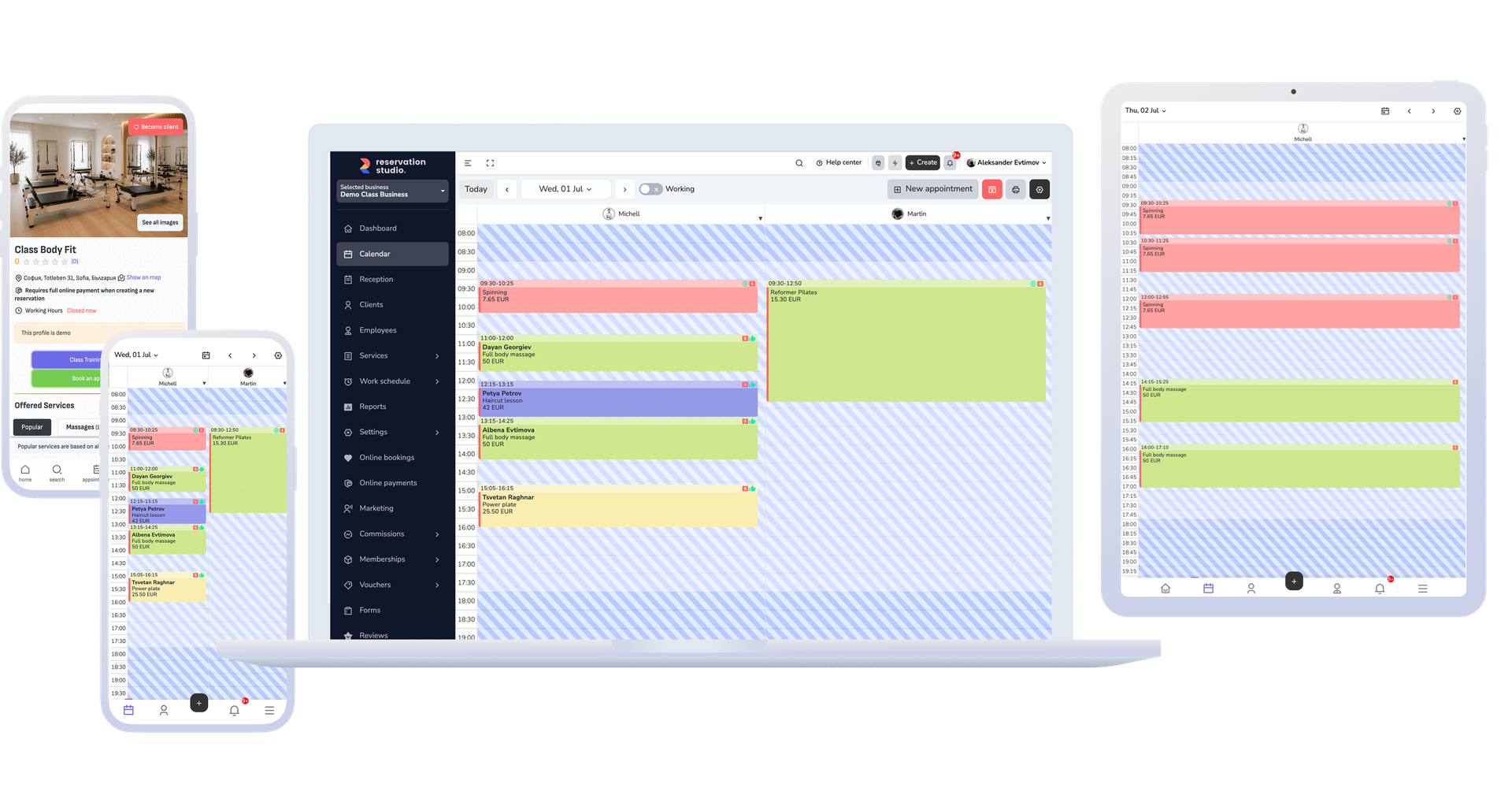
Reservation.Studio Business in the browser, on mobile, and on Desktop where needed
Most teams manage the main work in the browser, use mobile for quick checks and QR scanning, and keep Desktop only for roles with a real local need.
Why this matters
Browser first. Mobile for speed. Desktop where local work still matters.
Teams do not need every app everywhere. What matters is that reception, specialists, and managers know which device fits their work and when Desktop really belongs.
Use the mobile app for notifications, quick schedule checks, quick client checks, short actions, and QR scanning away from the desk.
Bring in Desktop where there is a local device — a fiscal device, a qualified signature for NHIS — or a fixed front desk workstation.
How it works
Keep the main work in the browser and add other apps only where they help
The strongest setup does not spread the team across unnecessary installs. It keeps the full day's work in the browser, gives mobile the quick jobs it handles best, and limits Desktop to the roles that have a real local requirement.
- Use the browser for the live day when someone needs the calendar, front desk, lists, settings, reports, or any longer task.
- Add the mobile app when someone needs notifications, a quick schedule check, a quick client lookup, or QR scanning with the phone camera.
- Use Desktop at the front desk when a fiscal device is attached to the workstation, or when NHIS requires qualified electronic signing.
- Keep installation links and setup guidance in the Help Center and Downloads instead of turning downloads into the main product story.
What this part includes
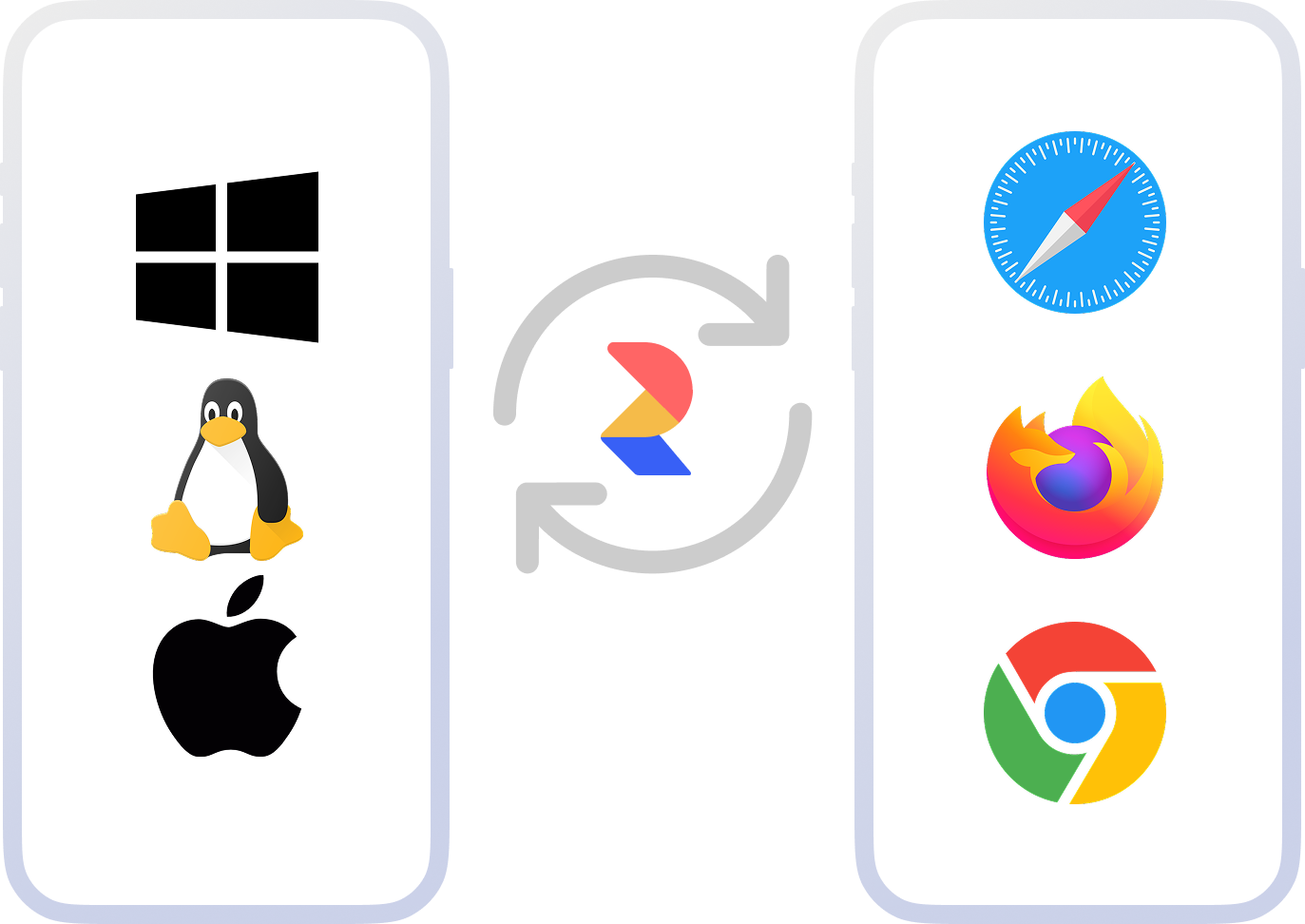
Where each surface fits
The point is not to list operating systems. The point is to make it obvious which surface is best for which job.
Browser as the main workspace
This is where most teams keep the calendar, front desk work, lists, settings, reporting, and the longer parts of the workday.
Mobile for quick actions on the move
Mobile is most useful for notifications, fast schedule checks, quick client lookups, short actions, and QR scanning.
Desktop for the devices at the workstation
Desktop connects the fiscal device by cable and prints the receipt after payment, and in a medical practice it also carries qualified electronic signing into NHIS.
Help Center and Downloads for setup
When someone needs current installation links or setup guidance, the Help Center remains the right place to get them.
What improves
A clearer rollout and fewer wrong setup choices
The team can decide faster who should stay in the browser, who benefits from mobile, and where Desktop really belongs.
A clearer role for the browser
Core work stays in the most universal surface instead of being fragmented across unnecessary installs.
More useful mobile adoption
Mobile is introduced where it actually saves time instead of being treated as a replacement for every longer task.
A cleaner setup for the team
From the start it becomes clearer who works in the browser, who needs mobile, and where Desktop really makes sense.
FAQ
What teams usually ask about access
Does every business need Desktop?
No. The browser comes first. Desktop is for a front desk with a fiscal device attached to the workstation, or for qualified electronic signing into NHIS.
What does Desktop do that the browser cannot?
It reaches the devices at the workstation itself. That is where the fiscal device connection comes from — the receipt prints automatically after payment and its data is recorded against the sale — along with qualified electronic signing for NHIS.
Does the mobile app replace the browser?
No. It is most useful for quick checks, notifications, and QR work, while longer work, lists, and reporting usually stay in the browser.
Where do the current installation links come from?
Desktop download links live in the Help Center and its Downloads section. Mobile apps are available through Google Play, the App Store, and AppGallery.
When does mobile create the most value?
When someone is away from the desk and needs to review the schedule, check a client, react to a notification, or scan a QR code with the phone camera.
Next step
See support, NHIS, or book a demo
If the issue is what to install and where downloads come from, open support. If you run a medical practice, open NHIS. If you want to decide who on the team works in the browser, on mobile, and on Desktop, book a demo.